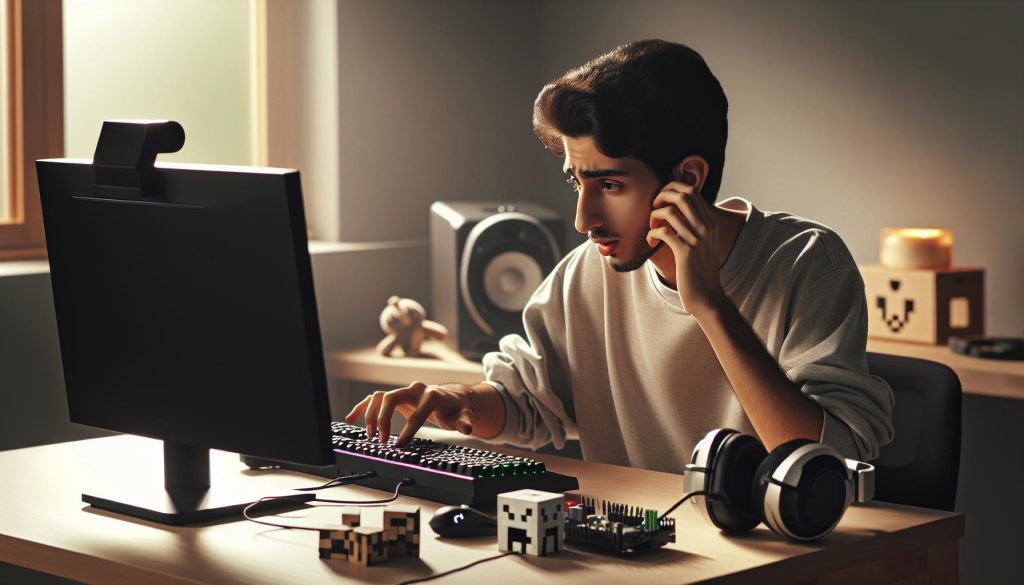
Imagine diving into the blocky world of Minecraft, ready to embark on your next adventure, only to discover that the sound is unresponsive. This frustrating experience can turn your immersive gameplay into a silent, dull affair. Understanding how to fix sound issues in Minecraft is crucial for enhancing your overall gaming experience. Whether it’s the roar of a creeper, the gentle flowing of water, or your friends’ laughter on a multiplayer server, sound plays an integral role in the Minecraft universe. In this guide, we’ll explore effective solutions to restore sound to your game, ensuring that you can fully engage with everything Minecraft has to offer. Stay with us as we navigate through common sound problems and their easy fixes, empowering you to return to the vibrant world of Minecraft, where every sound counts!
Common Reasons for No Sound in Minecraft
Experiencing no sound while playing Minecraft can be frustrating, especially given the immersive nature of the game where audio plays a significant role in gameplay. There are several common reasons that may contribute to sound issues in Minecraft, and understanding these can aid in quickly resolving the problem.
First and foremost, audio settings are often the culprit. Players may inadvertently mute the game or lower the volume settings within Minecraft. It’s a good practice to check the in-game audio settings to ensure all sound categories, such as “Master Volume,” “Music,” and “Sound Effects,” are adjusted appropriately. Additionally, system sound settings can impact Minecraft’s audio. If the system’s overall sound is muted or the volume is too low, the game will follow suit.
Another frequent issue arises from conflicts with other applications. Some users may have programs running in the background that take precedence over the game’s audio, particularly if they include virtual audio devices or sound enhancement software. Moreover, changes in audio output devices can also lead to silence in the game; for instance, if another device such as headphones or speakers is connected, it may not automatically switch back to the desired output.
Lastly, it’s not uncommon for corrupted game files or outdated versions of Minecraft to result in sound issues. Players should ensure their game is fully updated and, if necessary, consider verifying or repairing the game files via the launcher.
By checking these common factors, players can often pinpoint the source of their sound issues and enjoy a fully immersive Minecraft experience.
Quick Fixes for Minecraft Sound Issues
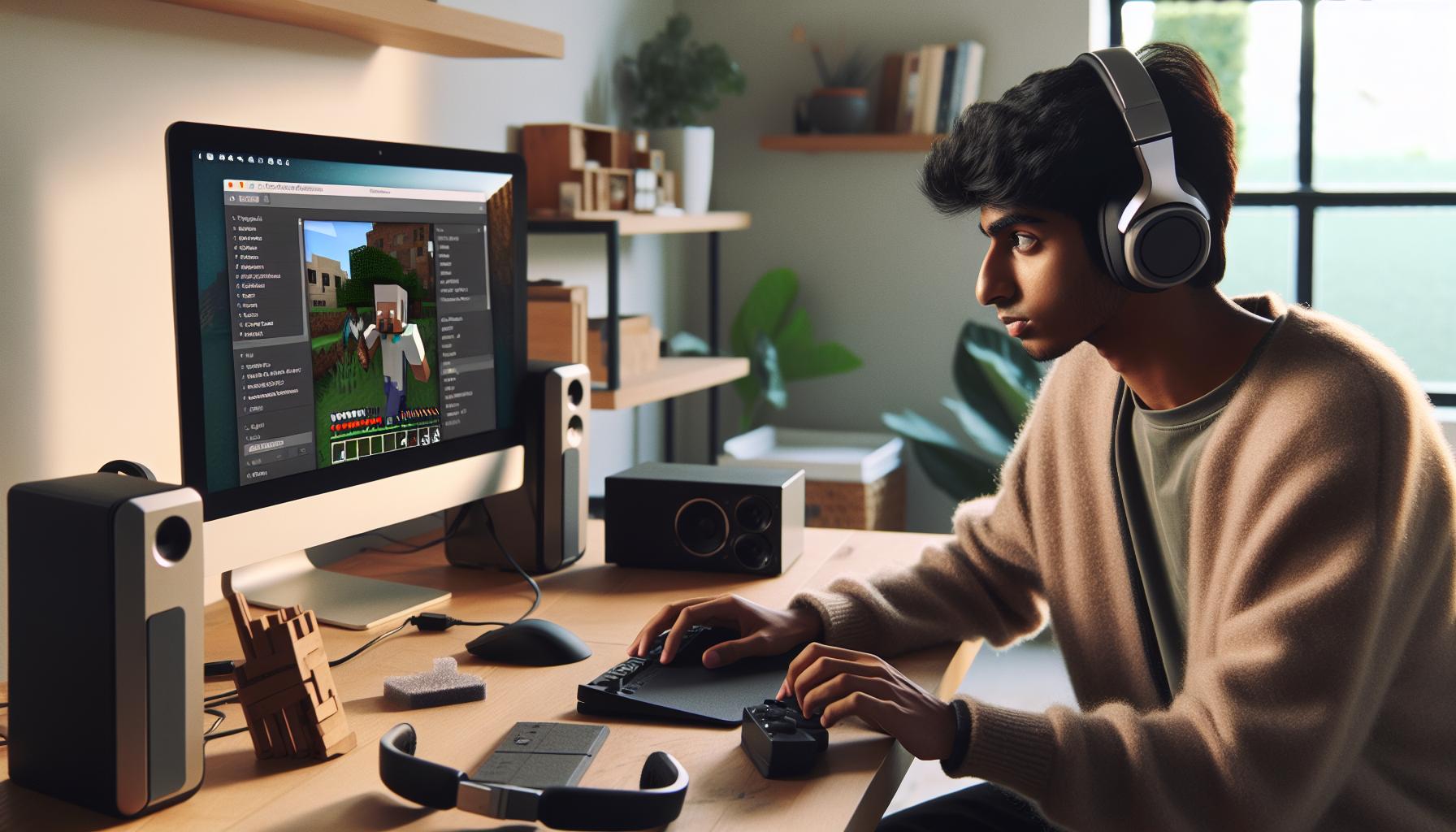
Experiencing sound issues while playing Minecraft can disrupt your gameplay experience, making it vital to address these problems swiftly. Thankfully, there are straightforward fixes that can often resolve sound problems effectively.
Start by checking in-game audio settings. Navigate to the settings menu in Minecraft and ensure that the master volume and individual sound categories like music and sound effects are turned up. Sometimes, players might accidentally mute the game or lower the volume, leading to unexpected silence. After adjusting these settings, exit and restart the game to see if the sound returns.
Next, examine your system sound settings. Ensure that the overall sound on your device is not muted and that the volume isn’t set too low. If you’re using Windows, right-click the sound icon in the taskbar, select “Sounds,” and check that Minecraft is not muted in the application list. Additionally, consider checking your default playback device; if you’re using headphones or external speakers, make sure they are properly connected and set as the default.
Conflicts with background applications can also contribute to sound problems. Close any unnecessary software that might interfere with Minecraft’s audio, particularly audio-related tools or virtual sound devices. After closing these applications, restart the game to see if this eliminates the sound issue.
Finally, keep your game updated. Sometimes, corrupted files or outdated versions of Minecraft can result in sound issues. Use the Minecraft launcher to ensure you’re running the latest version, and consider verifying the integrity of game files to fix any corruption that might be affecting audio output. By following these quick fixes, you can regain the immersive audio experience that Minecraft is known for and dive back into your adventures without delay.
Updating Audio Drivers for Optimal Performance
Updating your audio drivers is a crucial step for ensuring that sound functions properly in Minecraft and other applications. Outdated or corrupted audio drivers can lead to a range of sound issues, from distorted audio to complete silence. In an environment as immersive as Minecraft, where sound plays a key role in gameplay, maintaining optimal audio performance is essential for a satisfying experience.
To update your audio drivers, first, determine the manufacturer and model of your audio device. You can do this through the Device Manager on Windows. Here’s how:
- Right-click on the Start button and select “Device Manager.”
- Expand the “Sound, video and game controllers” section.
- Right-click on your audio device and select “Properties.”
- In the new window, go to the “Details” tab and select “Hardware Ids” from the dropdown menu. This information will help you find the correct driver.
Once you have identified your audio hardware, you can proceed to download the latest drivers from the manufacturer’s website or use Windows Update. Often, manufacturers like Realtek, NVIDIA, or AMD offer specific tools on their websites for driver updates. Here’s a step-by-step guide to updating your drivers via Windows Update:
Updating Drivers through Windows Update
- Open Settings by pressing Windows + I.
- Select “Update & Security.”
- Click on “Windows Update” and then “Check for updates.” If there are any optional updates related to your audio drivers, they will appear here.
- Follow the prompts to install any available updates.
After updating, restart your computer to ensure that new changes take effect. Once you’re back, launch Minecraft to see if the sound issues have been resolved.
By keeping your audio drivers up to date, you not only help to prevent sound-related issues in Minecraft but also improve overall system performance, ensuring smoother gameplay and a more enjoyable gaming experience. Don’t underestimate the impact of audio drivers; frequently overlooked, they can be the key to unlocking the full potential of your gameplay environment.
Adjusting In-Game Sound Settings in Minecraft
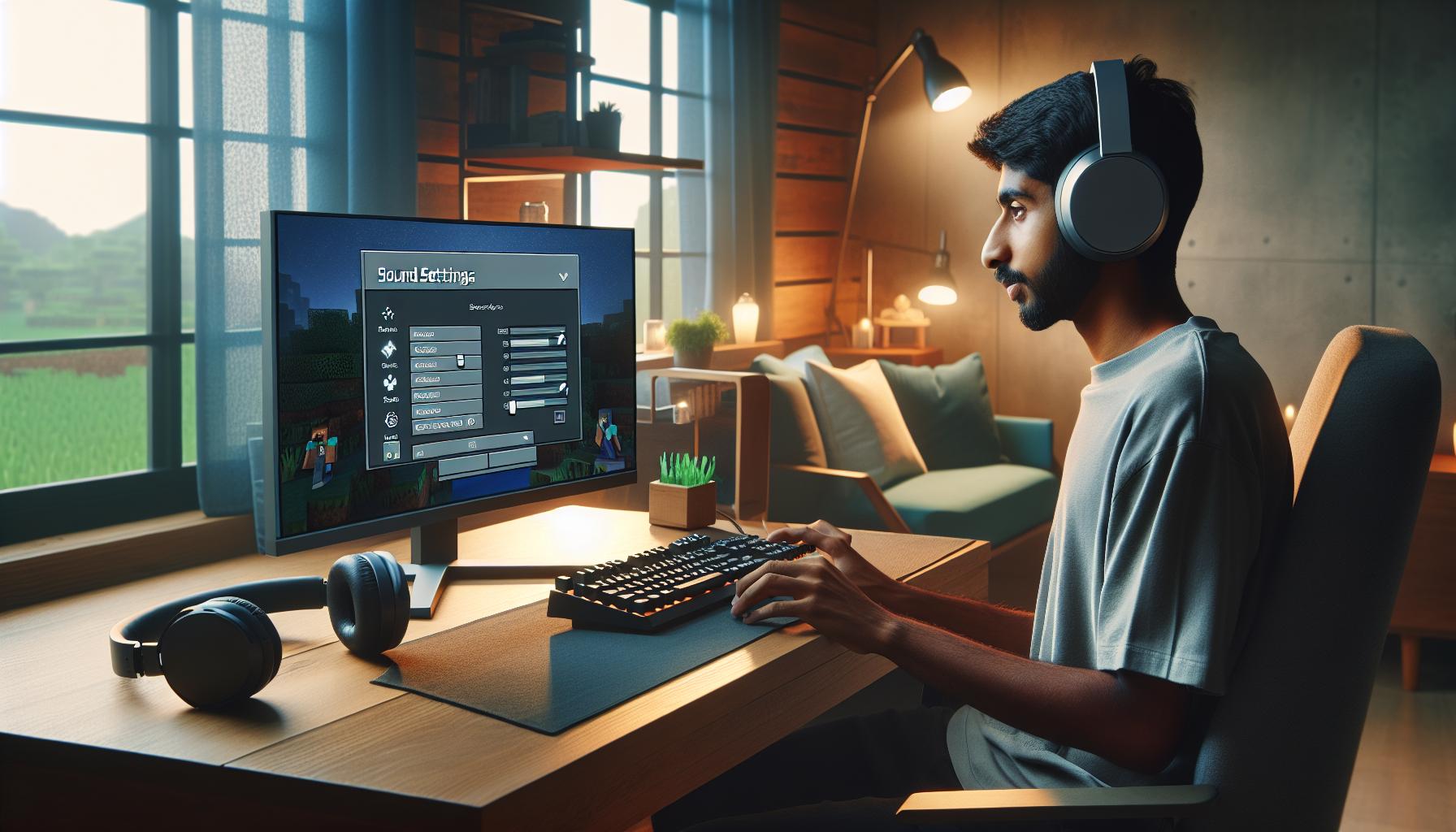
Adjusting sound settings properly within Minecraft can transform your gaming experience, allowing you to fully immerse yourself in the game’s enchanting environments and audio cues. Sound not only enhances the ambiance but also provides crucial feedback-like the sounds of mobs or weather-which can significantly affect your gameplay. If you’re not hearing anything, the issue may lie in your in-game sound settings.
To adjust your audio settings, start by navigating to the main menu of Minecraft and selecting “Options.” From there, click on “Music & Sounds.” Here, you’ll find a variety of sliders for different sound categories, such as “Master Volume,” “Music,” “Sound Effects,” and “Ambient.” Each of these categories affects various aspects of sound within the game, so it’s essential to experiment with the sliders to find the perfect balance that suits your preferences. For instance, if you find the background music too distracting, lowering the “Music” slider while keeping the “Sound Effects” and “Ambient” sounds high can create an ideal atmosphere.
If you’re still experiencing sound issues, consider resetting these settings to default. This can often resolve any unexpected behavior caused by prior adjustments. Click on the “Reset” button located in the same “Music & Sounds” menu. After resetting, make sure to adjust the sliders again to tailor the sound to your liking. This process may also help ensure that all sound categories are enabled, as certain settings may inadvertently mute specific sounds.
Finally, ensure that your sound settings in Minecraft correspond to your system settings. Sometimes, the game may not produce sound because system audio settings interfere. Check that Minecraft isn’t muted in your operating system’s audio settings and that the correct output device is selected. By taking these steps to adjust and optimize your in-game sound settings, you can enhance your overall gameplay experience, enabling you to relish every delightful sound that Minecraft has to offer.
Troubleshooting Sound on Different Platforms
When diving into the world of Minecraft, encountering sound issues can be a common frustration, but troubleshooting can vary depending on the platform you’re using. Whether you’re playing on a PC, console, or mobile device, each system has its unique settings and configurations that could affect audio output. Understanding these can make all the difference in restoring your gaming experience to its fullest auditory potential.
For PC users, it’s essential to ensure that your audio drivers are up to date. Navigate to your device manager and confirm that your sound drivers are current. Additionally, check the audio output settings in your OS; sometimes, the output may unknowingly switch to a different device. You can also test sound output by playing audio outside of Minecraft to determine if the issue resides solely within the game. Pay close attention to the volume mixer; ensure that both your system and Minecraft are unmuted, and adjust the volumes appropriately to hear the game sounds clearly.
Console gamers, such as those playing on PlayStation or Xbox, should verify that the game audio isn’t muted through the in-game settings. Additionally, check your console’s audio settings, making sure output is set correctly-whether using HDMI, optical cables, or standard audio jacks. Also, if you’re utilizing a headset, confirm that it’s properly connected and that your console detects it. Testing with another headset can also help establish whether the issue is with the hardware or the game itself.
For those on mobile devices, ensure that the device’s media volume is turned up and that Minecraft is allowed to access audio through your device’s settings. Sometimes, restricting app permissions can lead to unintended silencing of sound. Restarting the game or even the device can resolve temporary glitches that may interfere with audio playback. Lastly, if you are using Bluetooth devices, ensure they are properly paired and functioning, as connection issues can often hinder sound.
By considering platform-specific solutions, players can effectively troubleshoot sound issues in Minecraft, allowing them to fully immerse themselves in the vibrant worlds and auditory experiences the game has to offer.
Using External Audio Devices with Minecraft
Utilizing external audio devices can significantly enhance your Minecraft experience, immersing you deeper into the game’s vast environments and intricate soundscapes. However, successfully connecting and configuring these devices can sometimes pose challenges. Whether you’re using a gaming headset, speakers, or even Bluetooth devices, there are several strategies to ensure optimal sound performance while playing.
To begin, make sure your external audio device is properly connected. For wired headphones or speakers, check that they are plugged firmly into the correct audio jack or USB port. If you’re using a Bluetooth device, ensure that it is correctly paired and connected to your computer or console. Sometimes, simply disconnecting and reconnecting the device can reset its connection and restore audio functionality in the game. Additionally, check the volume settings on both Minecraft and your device itself; these may need to be adjusted individually to avoid sound conflicts.
Adjusting Device Settings for Better Sound
Once your device is connected, dive into the audio settings of your operating system or console to confirm that the correct output device is selected. On Windows, right-click on the sound icon in the taskbar and select “Playback devices.” Ensure your external device is set as the default device. Similarly, console users should navigate to the audio settings menu to choose the appropriate output source, ensuring that sound is routed correctly through their headphones or speakers rather than through the TV or monitor.
If you encounter issues with sound not coming through your external device, a quick restart of both Minecraft and the device itself may resolve temporary glitches. In some instances, conflicting applications can take priority over Minecraft’s audio. To troubleshoot this, close any unnecessary programs or applications that may also be utilizing audio output. This will help ensure that Minecraft gets exclusive access to your device, allowing its sounds to play without interruption.
By taking these steps, you can enhance your audio experience in Minecraft, allowing you to enjoy the game’s captivating sounds to their fullest extent. Whether it’s the gentle rustle of leaves in a forest or the echo of mobs underground, the right setup with your external audio devices brings these elements to life, offering a richer and more engaging gameplay experience.
Checking Windows Sound Settings for Minecraft
To fully immerse yourself in the enchanting world of Minecraft, sound plays a crucial role. However, many players occasionally find themselves in a frustrating situation where no sound is produced during gameplay. This often stems from incorrect settings on their Windows operating system. By ensuring that your system is properly configured to work with Minecraft’s audio, you can restore that vital sound and elevate your gaming experience.
First and foremost, it’s essential to check if the correct audio output device is set in Windows. Right-click the sound icon in the taskbar and select “Playback devices.” This will open a window displaying all audio devices connected to your system. Look for your headphones or speakers in the list; if they aren’t marked as default, right-click on them and select “Set as Default Device.” This ensures that Minecraft is routed through the right device, allowing you to hear every block you break and mob that roams the land.
Another common issue involves the volume levels within the Windows sound settings. In the same Playback devices window, check the volume slider for your output device-make sure it’s not muted and is set to a reasonable level. Additionally, launching Minecraft while these settings are open can provide insight into whether the game is registering any audio output at all. If sound is still absent, navigate to the Advanced tab in your Playback device settings and ensure the sample rate is compatible with your hardware (typically 44.1 kHz or 48 kHz is ideal).
If all else fails, consider using the Windows Troubleshooter. Right-click the sound icon in the taskbar again, select “Troubleshoot sound problems,” and follow the prompts. This tool automatically detects and suggests fixes for common audio issues. By ensuring that your Windows sound settings are properly configured, you can resolve many audio problems in Minecraft, restoring those essential audio cues that contribute to a richer gaming experience.
Whether it’s the rustling of leaves or the crackle of fire, sound is integral to the full enjoyment of Minecraft. By following these steps, you’ll be back to exploring the vast landscapes with a greater sense of presence and adventure in no time.
Resolving Conflicts with Other Software
To enjoy an immersive experience in Minecraft, it’s vital to ensure the game’s sound functions correctly. However, conflicts with other software can often disrupt audio playback, leaving players frustrated and in silence. Many gamers might be surprised to discover that background applications, especially those that also manage audio or communicate online, can interfere with Minecraft’s sound settings. Identifying and resolving these conflicts is an essential step to restoring audio enjoyment in your gameplay.
One common culprit could be voice chat applications like Discord, TeamSpeak, or Skype. These programs often take control of audio channels and may inadvertently mute or lower the volume of Minecraft while they are running. To troubleshoot this issue, consider the following steps:
- Close Unused Applications: Completely exit any background applications that might access audio resources. This includes any streaming software or recording tools that could be hijacking the audio output.
- Check Audio Settings: Within each application, review the audio settings to ensure they are not conflicting with those of Minecraft. For instance, try changing the input/output device settings.
- Reboot: Sometimes, a simple reboot of your system can help refresh the audio settings and resolve temporary conflicts.
Another aspect to consider is potential audio enhancements or sound control software like Nahimic or Dolby Atmos, which sometimes alter sound profiles. These enhancements could inadvertently affect how Minecraft processes its audio. To mitigate these risks, disable any sound processing features temporarily to see if that resolves the issues.
Lastly, if you’re still facing audio troubles, try running Minecraft in compatibility mode or as an administrator. This can give the game the necessary permissions to access audio hardware without interference. By systematically addressing these potential conflicts, you can ensure that Minecraft’s sound effects are restored, allowing the lush world you explore to come to life with every block broken and every mob encountered.
Resetting Minecraft Audio Settings to Default
Restoring the audio settings in Minecraft to their default state can be a transformative solution when troubleshooting sound issues. Many players find that after tweaking the extensive options available, they inadvertently create conflicts that mute or distort game sounds. Whether it’s due to experimenting with different sound profiles or a resource conflict, resetting your audio settings is a straightforward method to bring your gaming experience back to life.
To reset your audio settings, begin by launching Minecraft and navigating to the main menu. Once there, access the Options menu. Enter the Music & Sounds section, where you’ll find a variety of sliders and settings controlling the game’s soundscape, such as ambient sounds, sound effects, and music volume. Take a moment to observe what each slider is doing. If your audio is misbehaving, consider clicking the “Reset” button here, which typically restores all sound-related settings to their original states.
After resetting, ensure that the game is set to play sounds through the proper audio device. If you’ve connected external audio hardware or have multiple audio outputs (like headphones and speakers), make sure Minecraft is using the correct one. You may also want to check your system’s audio settings to confirm that Minecraft is not muted or set to a very low volume level.
If sound issues persist even after a reset, don’t hesitate to explore further. Sometimes, version updates or other temporary conditions can affect audio settings. Keeping your game updated and running diagnostics on your system sound configurations could reveal additional underlying issues. Embracing these techniques not only enhances your immersion within Minecraft but also ensures that you’ll hear every pickaxe strike and mob encounter in stunning clarity.
High-Quality Audio Solutions for Gamers
Ensuring an immersive audio experience while playing Minecraft can elevate gameplay significantly, transforming a basic interaction into a captivating adventure. Many gamers overlook this aspect, assuming that built-in audio solutions are good enough. However, investing in high-quality audio solutions can drastically enhance sound fidelity and positional audio, allowing players to perceive subtle environmental cues like the sounds of distant mobs or the gentle rustling of leaves.
One of the simplest yet effective upgrades is using a dedicated gaming headset that offers surround sound capabilities. These headsets not only allow for clearer audio but also create a spatial awareness that can be crucial during intense gaming sessions. Look for options with noise-canceling features and comfortable cushioning, as long gaming hours can take a toll if you’re not equipped with the right gear. Brands like HyperX, SteelSeries, and Razer have excellent options that cater to various price ranges while delivering high-quality audio performance.
Additionally, audio interfaces and digital-to-analog converters (DACs) can provide a significant upgrade in sound quality, especially for those using external speakers. These devices bypass the computer’s built-in audio system, offering cleaner sound and better fidelity. For gamers who prefer using high-end speakers over headsets, an interface can enhance sound clarity and ensure that the low frequencies of Minecraft’s ambiance are felt rather than just heard.
For those seeking an optimal gaming experience without additional hardware purchases, software solutions such as EQ (equalization) settings play a critical role. Many audio drivers come with adjustable equalizer settings that allow users to configure audio output to their preferences. By boosting specific frequency ranges, players can ensure that critical sounds-like breaking blocks or footsteps-are heard with clarity, providing an edge in survival scenarios.
In conclusion, enhancing your gaming audio experience in Minecraft involves a mix of the right hardware and software adjustments. By opting for quality headsets, investing in audio interfaces, and fine-tuning settings, players can ensure they don’t miss any of the engaging details the game has to offer. With these solutions in place, every creeper hiss, ambient noise, and immersive soundtrack will contribute to a truly exceptional gaming experience.
Advanced Troubleshooting for Persistent Issues
Ensuring sound clarity while navigating the pixelated landscapes of Minecraft can often prove to be a frustrating challenge, especially when issues persist despite your best efforts. When sound problems linger, taking a systematic approach to troubleshooting is essential to restore your immersive experience. Here are some advanced strategies to diagnose and resolve these persistent sound issues.
First, check the audio system settings:
- Go to Sound Settings in your operating system and confirm that your output device is configured correctly. Sometimes, devices may revert to a default setting unexpectedly, especially after updates.
- Within the Control Panel, explore the properties of your playback device to ensure content is set to play at the highest quality. Disabling enhancements can also yield clearer audio performance.
Next, delve deeper into Minecraft’s settings:
- Explore the game’s Options menu. Ensure sound sliders are not muted or set too low. Sometimes settings can reset during updates or system changes.
- Try switching the audio output setting, especially in scenarios where you’re using external devices like headsets or speakers. If you’re using Bluetooth, ensure that the connection is stable.
If problems still persist, consider checking for conflicting applications:
- Close any background applications that might interfere with audio, like voice chat programs or sound-changing software. These can sometimes monopolize audio channels or cause conflicts.
- Check for software updates for both Minecraft and your operating system, as bug fixes often include enhancements for audio performance.
Lastly, if the sound is still elusive, a more drastic measure might be necessary:
- Reinstalling Minecraft can seem daunting but can reset all configurations to their original settings, potentially resolving any lingering issues.
- For more persistent problems, consider reaching out to community forums or the official Minecraft support channels. Other players may have encountered similar problems and found specific fixes.
By systematically stepping through these options, you’ll not only increase the chances of restoring audio functionality in Minecraft but also equip yourself with troubleshooting techniques valuable across multiple software platforms. Remember, every sound-or lack thereof-carries the potential to enhance your gameplay, and addressing these issues can significantly elevate your Minecraft experience.
Community Tips and Tricks for Sound Issues
Engaging with the vibrant community around Minecraft can lead to valuable insights for resolving sound issues, benefiting players who may feel isolated by technical difficulties. Players often share practical tips that work in real-life scenarios, and some of the best solutions emerge from collective experiences. Here are community-driven strategies that have proven fruitful for restoring sound in Minecraft.
- Restart the Game: A simple yet effective step; many players find that restarting Minecraft resolves transient sound issues, especially after making changes to settings or updates.
- Run as Administrator: Some users have experienced sound problems due to permissions. Running the game as an administrator can help in acquiring the necessary privileges for sound functionality.
- Check Audio Formats: Players suggest adjusting the default format of your audio device in Windows. Setting it to 16 bit, 44100 Hz (CD Quality) has worked for numerous players as it can enhance compatibility with the game.
- Update Minecraft: Keeping the game updated is crucial. Many community members emphasize the importance of checking for the latest patches, which often include bug fixes directly related to audio issues.
- Using Community Resources: Forums and social media groups serve as excellent resources. Players frequently share specific command lines, mods, or unofficial patches that can resolve sound problems unique to certain setups.
- Device Switching: Some community members suggest switching audio devices (e.g., from a headset to speakers) during gameplay to refresh audio drivers and potentially reset sound functionality.
- Feedback Loop: Engage with the community on platforms like Reddit or Discord, where players actively discuss their experiences. Sharing your setup and the specific nature of your sound problem can elicit tailored advice.
Community-driven solutions often lead to practical fixes that might not be found in official troubleshooting guides. Remember, while the path to resolving sound issues can be frustrating, the collective wisdom of fellow players and their shared experiences can empower you to reclaim the sound in your Minecraft adventures. Don’t hesitate to ask for help; after all, the Minecraft community thrives on sharing knowledge and support.
Faq
Q: How do I check if my Minecraft sound is muted?
A: To check if your Minecraft sound is muted, go to the game’s audio settings. Ensure that the volume sliders are turned up and that the “Mute” option is not selected. Additionally, check your operating system audio settings as Minecraft’s sound may be controlled there.
Q: What should I do if Minecraft sound works on other games but not in Minecraft?
A: If sound works in other games but not in Minecraft, start by checking the in-game audio settings to ensure they are configured correctly. Also, try restarting your game or your device to refresh the software. If issues persist, visit the “Quick Fixes for Minecraft Sound Issues” section of our guide.
Q: Why is there no sound in Minecraft on my console?
A: If you’re experiencing no sound in Minecraft on your console, verify that audio output settings are correct on the console itself. Ensure that your TV or audio device is properly connected and not muted. Sometimes, reinstalling the game can also resolve unexpected sound issues.
Q: How can I reset Minecraft audio settings to fix sound issues?
A: To reset Minecraft audio settings, navigate to the audio options in the game menu and select the default settings. This action can restore the sound settings to their initial state, often resolving any conflicts or misconfigurations that may cause sound issues.
Q: Does running Minecraft in compatibility mode fix sound issues?
A: Running Minecraft in compatibility mode can potentially fix sound issues, especially on older systems. Right-click the Minecraft launcher, select “Properties,” then go to the “Compatibility” tab and enable compatibility mode for an earlier version of Windows to see if it resolves the sound problem.
Q: Can external audio devices affect sound in Minecraft?
A: Yes, external audio devices can affect sound in Minecraft. Ensure that your audio output device is selected correctly in the game’s audio settings. Disabling or removing other audio devices may help if there are conflicts preventing sound from working properly.
Q: How do I check if other software is conflicting with Minecraft sound?
A: To check if software conflicts with Minecraft sound, temporarily close background applications while playing. Pay special attention to audio-related programs or software such as music players or communication apps, as they may interfere with Minecraft’s audio output.
Q: What are the best troubleshooting steps for persistent sound issues in Minecraft?
A: For persistent sound issues, start by updating your audio drivers and the game itself. Next, check the game and system audio settings for conflicts. If issues continue, consider reinstalling the game, and refer to the “Advanced Troubleshooting for Persistent Issues” section in our guide for more detailed steps.
Closing Remarks
Now that you’re equipped with effective solutions to fix sound issues in Minecraft, don’t let silence ruin your gaming experience. Remember, troubleshooting audio problems can enhance your overall gameplay, so take action now! If you’re still facing challenges or want to dive deeper into optimization tips, check out our guides on Improving Minecraft Performance and Essential Minecraft Mods for further insights.
We’d love to hear your thoughts! Share your success stories or ask questions in the comments below. For more gaming tips and tech solutions, don’t miss our newsletter sign-up to stay updated. Keep exploring and gaming confidently – the world of Minecraft is waiting for you to turn the sound back on!